
Context & Overview
Objective
The objective here is to build a desktop app using Overwolf platform which should enable users to capture short videos/highlights/clips of key moments of their gameplay and allow sync with game.tv app, enabling users to directly share these videos in their associated clubs.
About Overwolf & game.tv
Overwolf is an Isreal based technology platform that enables third-party developers to build, distribute, and monetize in-game apps and mods.
game.tv helps creators who create their own clubs through which they can create gaming content, organise tournaments & build a thriving community of gamers. Major features inside a club include short videos, esports tournaments, live streams & game nfts.
PROBLEMS & PROJECT SCOPE
Problems
Difficulty in uploading PC gaming content: Even though game.tv is a mobile application, it should be easier for gamers from other platforms/devices as well to share gaming content with everyone.
Irrelevant video shorts uploads by members in clubs: There was a serious increase in irrelevant video shorts uploads by members of a club. This created a tedious task for the admins and moderators of a club to regulate suitable content on the platform. Additionally, this posed a risk to the engagement a content creator hopes to accomplish through that club.

1.1 Irrelavant videos is a major problem for creators, moderators & community managers. It affects the overall engagement of the club!
Project Scope
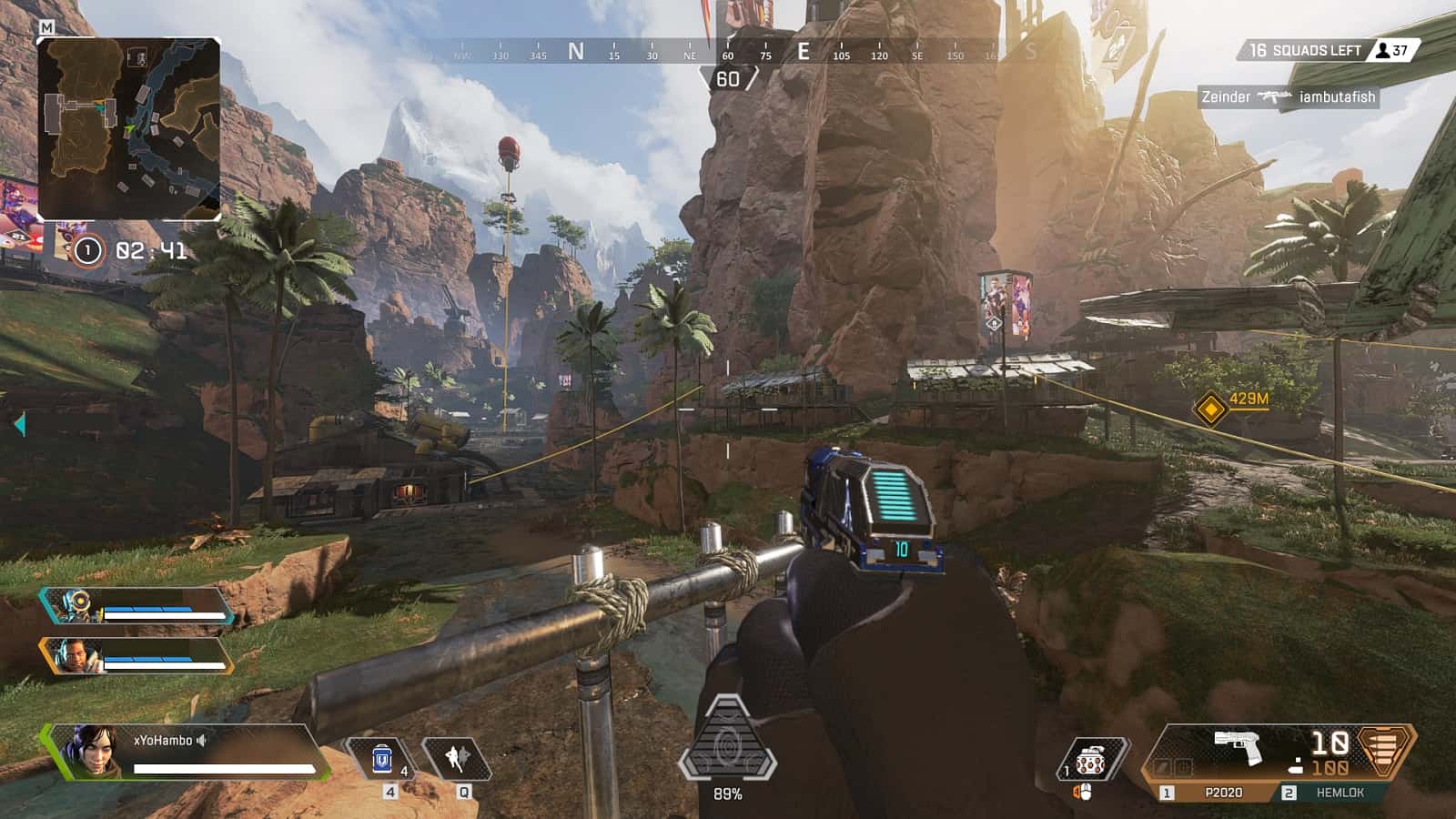
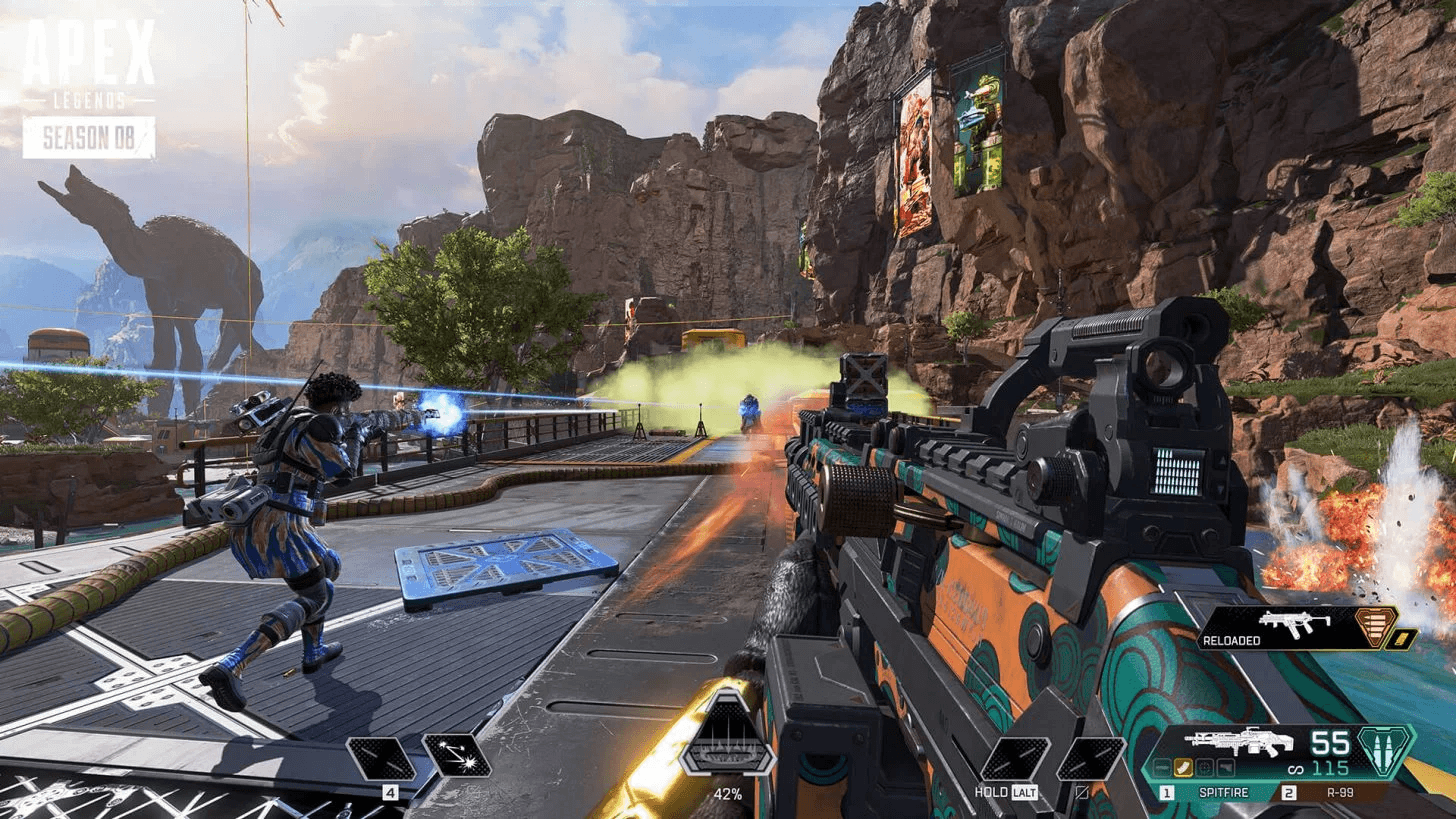
The type of content that a gamer uploads are majorly short clips of their gameplay involving critical moments like a successful kill or a knockdown. The idea was to help these gamers record these key moments effortlessly while playing the game and share these moments in the game.tv clubs.
Business Goal
Though game.tv targets only the mobile gamers, we decided to target mainly the PC gamers who use Overwolf for enhanced gameplay, and would want to share their gameplay clips with other users.
The KPIs for this project will be -
The number of app installs
The number of users having in-game auto-launch enabled.
The number of clips captured(manual or auto) per session
The number of unique users capturing and sharing clips.
ROLES
My Role
Responsible for end-to-end experience design for the MVP
What I did
Ideation, Research, Interaction Design, Visual Design, Prototyping.
Other roles involved
Product Manager - Communicated the requirements
Engineering Manager - Communicated phase-wise development goals so that I can align my design deliverables.
Front End Developers - Worked on a daily basis to get features developed.
In-house Gamers - Played various PC games and tested other applications available on overwolf to understand basic requirements.
Design Lead - Planned the MVP and gave final sign-off for feature designs.
Graphic Designers - Provided the required graphic assets.
Role Responsibilities
Business
Tech
UX
What is the problem?
Why should we solve it?
How should we solve it?
What are our priorities?
How should we
build it?
Is it easy to build
and maintain?
What is the experience?
Is it scalable in the future?
Is it consistent?
Is it delightful to use?
PRODUCT REQUIREMENTS
Requirement
For the initial testing, game.tv will create a native desktop application which will be hosted in the overwolf platform. Initially, a MVP will be created comprising only a single game(Apex Legends). This will extended for other games as well in future releases based on the feedback and demand of the initial offering.
The desktop app should mainly be able to -
Enable users to capture short clips of key moments of their gameplay.
Facilitate the gamers to keep all their recordings in one convenient place.
Should have the possibility for gamers to customize the clips in terms of type, length, and quality.
Allow sync with game.tv app, enabling users to directly share these videos in their associated clubs.
Project Timeline
There was an aggressive timeline of just 2 weeks for me(with the design team) to get the POC ready.
Week 1
Plan of Action
Research
User Journeys
Week 2
Ideation
Visual design
Prototyping
Research
Initial Research
For the research part, I did the following-
I installed and played multiple desktop games and tried using in-game apps from overwolf(e.g. ‘outplayed’ & ‘fuze.tv’) to understand the process.
I did a competitive analysis on similar existing in-game apps that record clips (e.g. ‘insights capture’ and ‘ouch’) and observed their interaction patterns.
I interviewed in-house gamers to understand their perspective on the ability to record important moments & share them.
User Personas
Based on our business goal, research on new & existing user base, we broadly settled for the below user personas.
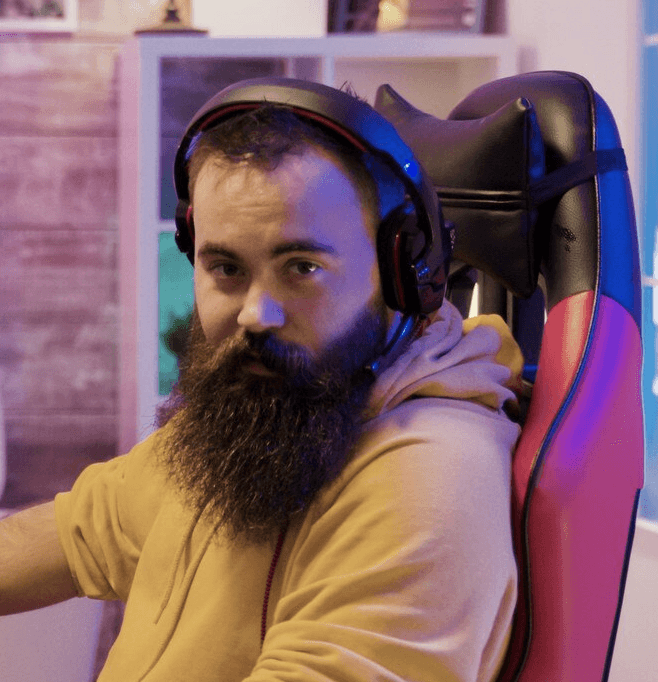
The PC Gamer
User Persona 1
The targeted end user for this project.
Has a natural talent for PC games.
Wants to share his gameplay.
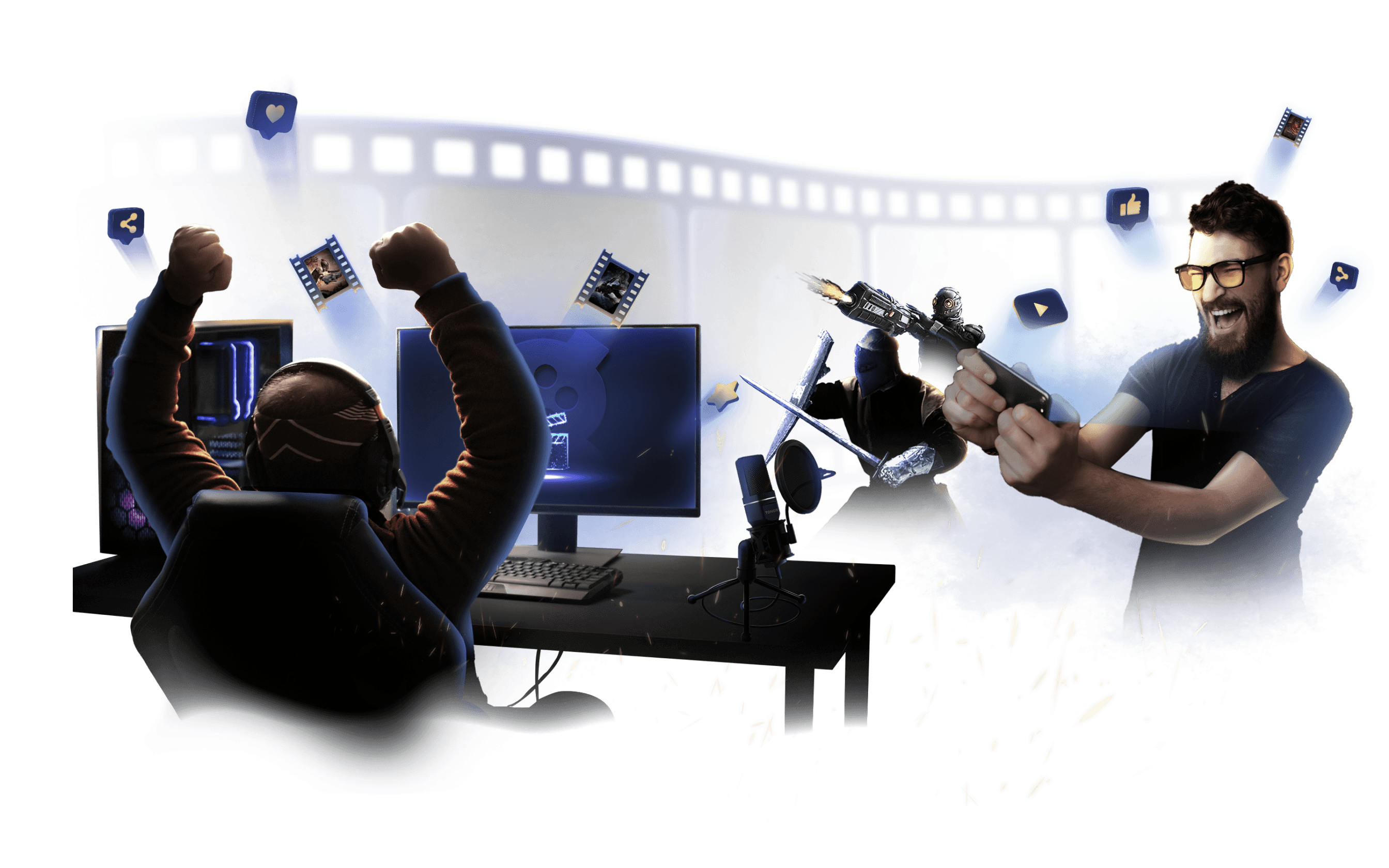
Mobile Gamer
User Persona 2
Gamer/creator who already use gtv.
Wants to explore PC games as well.
Wants to see more relevant content.

Additional User Pain Points
The current shorts video recording feature in the game.tv is quite similar to other video focused social media apps like instagram and tik-tok. But unlike those apps, the usage is different. Instead of recording their own videos, users want to share their gameplay.
Gamers do not want to record their gameplay manually since it’s a tedious task. Also, manual recording affects the performace of the gamer.
USER JOURNEY
User Flow
Start
End
App Page
Sessions menu
Opens a session gallery
Sets a clip as favorite
Deletes Clip
Shares Clip on game.tv
Log in pop-up
Clip successfully shared
Settings
Help Centre
Onboarding Screens
Log in/Sign up
Home
User searches app name
/game name/feature category
on overwolf and discovers app
User installs & launches app
User sets or skips the onboarding procedure
gtv account
linked?
Video & Audio Controls
Game controls
Overlay controls
Storage options
LinkedAccounts
About section
FAQs
No
Yes
User logs in
IDEATION
Rough Ideation
A quick interface sketching to layout the required screens.

Low Fidelity Prototypes
This was done for all initial discussions with the PM and engineering manager.
How to use?
Lorem ipsum dolor sit amet, consectetur
adipiscing elit sed.
Lorem ipsum dolor sit amet, consectetur
adipiscing elit, sed do eiusmod tempor
incididunt ut labore et dolore
Lorem ipsum dolor sit amet, consectetur
adipiscing elit sed.
Learn more
Share on game.tv
Lorem ipsum dolor sit amet, consectetur
adipiscing elit sed.
Lorem ipsum dolor sit amet, consectetur
adipiscing elit, sed do eiusmod tempor
incididunt ut labore et dolore
Lorem ipsum dolor sit amet, consectetur
adipiscing elit sed.
Log in to game.tv
Customize settings
Lorem ipsum dolor sit amet, consectetur
adipiscing elit sed.
Lorem ipsum dolor sit amet, consectetur
adipiscing elit, sed do eiusmod tempor
incididunt ut labore et dolore
Lorem ipsum dolor sit amet, consectetur
adipiscing elit sed.
Settings
My sessions
Session 11 | Oct 3, 2021
Clip 1
Clip 2
Clip 3
Clip 1
Manual
1:23.5
3:00.8
Share on game.tv
Overlay
Enable overwolf overlays for games
Hotkeys
Start/Stop Recording
F6
Select time Range(Secs before and after)
Secs
10
Record a Replay
F7
Select time Range(Secs before and after)
Secs
05
Take a screenshot
F8
Record Automatically
F10
Select time Range(Secs before and after)
Secs
05
Save Changes
Overlay and Hotkeys
Capture
My Games
Storage
Accounts
Welcome!!
Lorem ipsum dolor sit amet, consectetur adipiscing elit.
Nunc gravida convallis ultricies nisi, diam orci blandit id.Lorem ipsum dolor sit amet, consectetur adipiscing elit.
What to expect ?
Now capture highlights of your favourite games with
Setup
My sessions
Favorites
Search
October, 2021
Session 11 • Clips : 3
Apex Legends | Oct 3
Session 12 • Clips : 8
Apex Legends | Oct 3
Session 13 • Clips : 8
Apex Legends | Oct 4
Session 13 • Clips : 8
Apex Legends | Oct 4
Session 11 • Clips : 3
Apex Legends | Oct 3
Session 12 • Clips : 8
Apex Legends | Oct 3
Session 13 • Clips : 8
Apex Legends | Oct 4
September, 2021
Session 11 • Clips : 3
Apex Legends | Oct 3
Session 12 • Clips : 8
Apex Legends | Oct 3
Kepcha
Sessions
Settings
FAQs
My sessions
Session 11 | Oct 3, 2021
Clip 1
Clip 2
Clip 3
Clip 1
Manual
Share
1:23.5
3:00.8
Share on game.tv
Flyingwolf
Write the title here...
Write description here...
Add Tags (eg. fighter, apexlegends, kepcha)
Choose one club
Relics Valiant
Crop your video to a maximum of 59-second-timeframe
Select thumbnail for your video

Share
FINAL OUTCOME
The Home Screen
The home screen is where the user lands after the onboarding of the user. Here, the user can choose his next set of actions by navigating on the side bar menu or explore the various info tabs.
1
The side-bar menu: Users can access the primary functions of the application via the sidebar menu, i.e accessing recordings, customizing settings, and contacting support.
2
The information tabs: The information tabs are primarily for guiding and helping the user to fully utilize gameshots. The user can learn more about the application, its settings, and link his accounts if he hasn't already.
How to use?
Set hotkeys or use our auto-capture tech to record your moments of victory
Play games. Win big. Capture the best moments. Repeat!
Link your account to game.tv and start sharing
Learn more
Share on game.tv
Access all your favorite recordings from the Sessions menu
Add title, description, hashtags and thumbnail
Share across your created or followed clubs on game.tv
Log in to game.tv
Customize settings
Show/hide app elements in-game
Change hotkeys and select game-specific events to capture
Set the duration for the video (seconds before and after the crucial event)
Settings
Record. Review. Relive
1
2
Sessions Menu
Sessions menu is where the user can access all the his gaming sessions in form of folders.
1
The folder: In order to make access to clip recordings easier, the session recordings are organized in folders.
2
The 3-dot menu: The user can mark a session favorite, rename or delete it.
3
Favorites: This section has all the sessions and clips that has been marked favorites.
4
Search: If the user prefers not to scroll down, they can search any session by typing in the game name, session name, or session date.

Sort by Date
My sessions
Favorites
Search
January, 2022

Session 15 • Clips : 3
Apex Legends | Jan 22

Session 14 • Clips : 8
Apex Legends | Jan 22
Session 13 • Clips : 8
Apex Legends | Jan 15

Last Minu... • Clips : 8
Apex Legends | Jan 15
SessionXX • Clips : 8
Apex Legends | Jan 10
Killmonger .. • Clips : 8
Apex Legends | Jan 02
TreeHous... • Clips : 8
Apex Legends | Jan 01
December, 2021
Session 04 • Clips : 8
Apex Legends | Dec 31
Session 03 • Clips : 8
Apex Legends | Dec 30
Mark Favorite
Rename session
Delete session
3
1
2
4
My Sessions Page
1
Thumbnails: All recorded clips are displayed in thumbnails at the top, from which any clip can be accessed.
2
Selected clip: Upon selecting a clip thumbnail, the user can view the preview of the clip in the center.
3
Action buttons: The main CTA is the share icon. The user can mark a clip favorite, rename or delete it.
Since this was the MVP, we decided to include the option for cropping the clip in the next iteration.
Delete
My sessions
Session 11 | Oct 3, 2021
Clip 1

Clip 2

Clip XYZHSA...
Clip XYZHSA...
Clip XYZHSA...
Clip XYZHSA...
Clip XYZHSA...
50 more...
Clip 1
0:15 / 2:54
Manual
Share on game.tv
1
2
3
Onboarding screens
1
Hot Keys: If a user chooses to manually record his gameplay, she/he can set up the shortcuts here.
2
Video Settings: Here, the user has the option of selecting the video resolution in which he/she wants the clips recorded.
3
Folder Settings: The user can choose the folder where the clips will be saved on his/her computer. He can also select whether he wants to record and save the clip manually or automatically.
4
Link Account: The user gets the option to link the gameshots app to his game.tv account.
Hello there!
Let’s get you started
Automatically detect and record key events or use hotkeys to capture moments manually.
Review your recordings and easily share across social media
Save instant replay
Ctrl+Alt+9
Show/hide the app in-game
F7
Show/hide the overlay in-game
Ctrl+B
Back
Next
Set Additional Settings
Choose where to save your recordings & how videos
are recorded and deleted
Choose folder to keep recordings
C:/Users/Keptcha/ApexL
Choose Folder
Auto-launch app when you start a game
Record automatically after each major event
Select time Range(Secs before and after)
Secs
30
Back
Next
Set Additional Settings
Choose how videos are recorded
1080p 60fps
High Quality
720p 30fps
Medium Quality
360p 30fps
Low Quality
Back
Next
Link your game.tv ID
Scan the QR code with your game.tv application

Back
Done
Skip
Launch game.tv
Tap the "More" tab below
Tap the "Link Platform" option
Select "Scan QR and link"
1
3
2
4
CLOSURE
Initial Launch
The MVP was launched as gameshots support for game.tv app version 2.4 in April 2022. The shorts shared are visible in the home-feed and followed clubs’ profile.
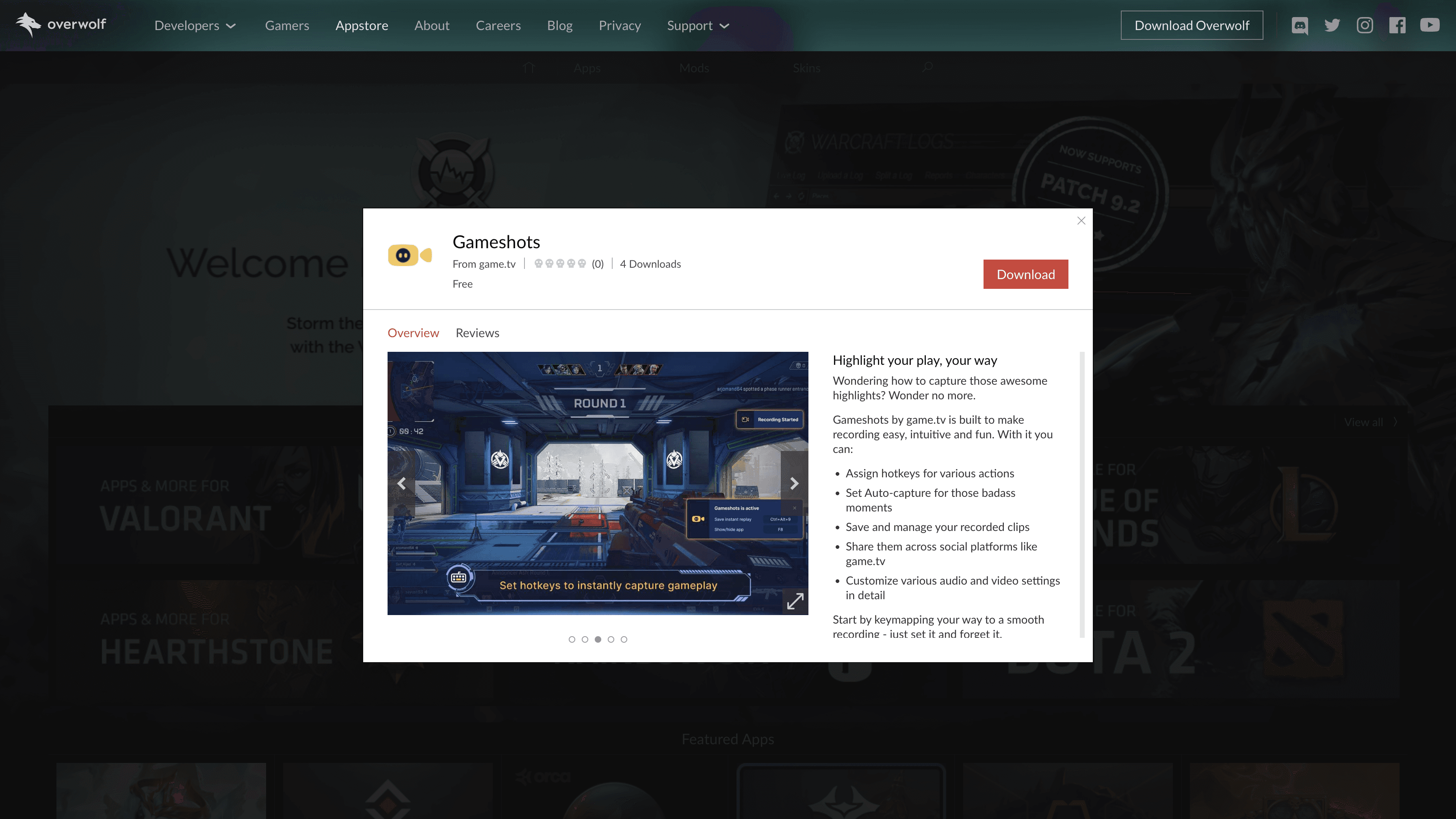
https://www.overwolf.com/app/game.tv-Gameshots
Discussion Points
Since we aren’t asking users to login to the app, do we get any overwolf id (user specific)? How do we check data of users (# of videos captured, etc) of users not connected to game.tv app?
In the future, should we allow users to crop the video at the time of sharing or restrict users by placing a 1 minute limit?
Upcoming Iterations
Even though it was too soon to understand the KPIs for the project, the following were decided to be included in the next release of the gameshots application.
Addition of more games. 25 games are in pipeline.
Opening of game.tv app on cloud (through now.gg).
Capturing the complete gameplay of a session.
Real-time stats & post-match summary.
LEARNINGS & FUTURE STEPS
Things I learnt
The cycle of continuous iterations and improvements required in a MVP.
Having a thorough understanding of the design system is useful at the beginning of the project in identifying implementation gaps.
It’s important to understand the scenarios in which users use the same feature in different apps.
Future Steps
Follow up with the business team to determine whether the KPIs were met.
Learn what improvements can be made by gathering feedback from gamers(the core users).
Research and play other PC games besides Apex Legends to understand which games could be added to the application.
SOURAV DAS
© 2026 Portfolio